> For the complete documentation index, see [llms.txt](https://docs.bunny.com/guide/llms.txt). Markdown versions of documentation pages are available by appending `.md` to page URLs; this page is available as [Markdown](https://docs.bunny.com/guide/advanced-guides/integrations/xero.md).
# Xero
Integrate Bunny with Xero for seamless SaaS revenue accounting.
To install the Xero integration, go to **Settings** -> **Integrations** -> **Available integrations** and select the Xero integration:

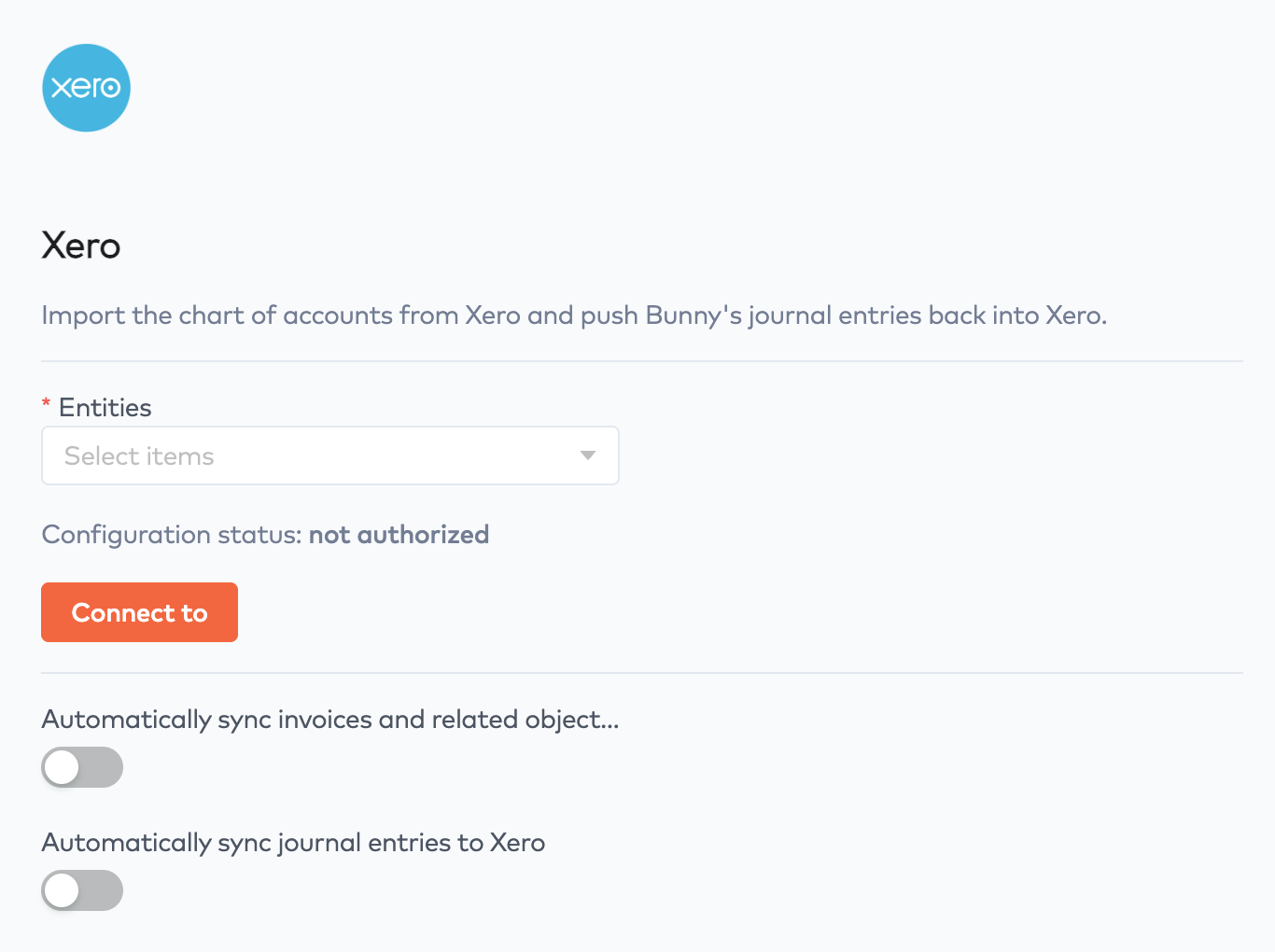
Once added, the Xero integration configuration screen will appear:
1. Select the entity for which this integration is for. This controls which invoices or journal entries are synchronized. Click **Save**.
2. Click **Connect to** and the Xero integration authorization dialogue will appear:\
\

3. Click **Allow access**. The window will close.
4. On the Xero integration configuration page you have the option to select between two integration modes:
1. **Automatically sync invoices...** which will push invoice and related customers to Xero as soon as invoices are generated (and released from Draft, if that is enabled) as well as the related customer.
2. **Automatically sync journal entries...** which will push journal entries related to invoices, accounts receivable, payments, taxes etc. to Xero as manual journals.\
\
See below for further explanation of these options.
5. Click **Save**. The integration is now active.
### Invoice synchronization
If enabled, invoices and their related customer will be pushed to Xero once the invoice leaves the `Draft` state and goes into either `Not due`, `Due` or `Paid` .
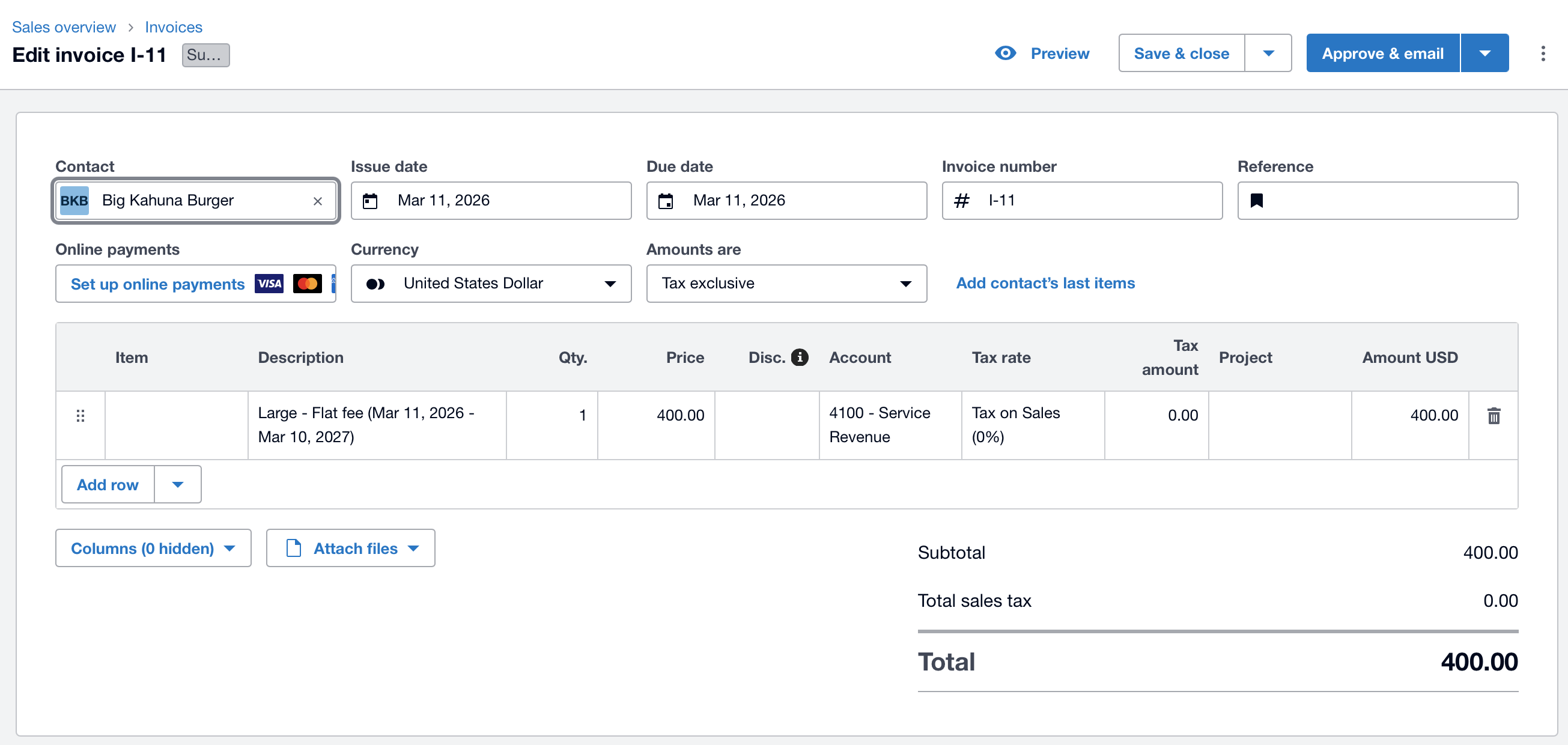
Invoices in Xero are created as draft invoices and will need to be approved to become final in Xero.
### Journal entry synchronization
Journal entries are generated when one of the following events happen:
* An invoice is created.
* A payment is received.
* A credit note is created.
* A payment is applied to an invoice.
When doing this, Bunny looks for the default financial accounts for e.g. accounts receivable, clearing account, deferred revenue, earned revenue etc. By default, Bunny comes with a set of financial accounts, and before journal entries can be synchronized to Xero, these mappings need to reconfigured.
The following configuration steps must be completed:
1. On the Xero integration configuration page, click **Update accounts**. This will import the chart of accounts from Xero into Bunny.
2. Next, go to **Billing** -> **GL mappings**. For each of the account types listed below, select the corresponding financial account imported from Xero, and set the account type attribute to the correct account type. Additionally, mark the account as default for that account type.\
\
As an example, the account type **Accounts receivable** must be set on the financial account "1200 - Accounts receivable" which was imported from Xero:\
\
Perform these steps for each of the following account types:
1. Earned revenue
2. Deferred revenue
3. Accounts receivable
4. CP/CA
5. Tax payable
6. Conversion gain
7. Conversion loss
8. Banking fees
9. Payments
10. Bad debt
3. Once all the above account types have been assigned to financial accounts imported from Xero, the integration can be enabled. Go to the Xero integration configuration page, and enable the **Automatically sync journal entries to Xero** setting and click Save.
---
# Agent Instructions
This documentation is published with GitBook. GitBook is the documentation platform designed so that both humans and AI agents can read, navigate, and reason over technical content effectively. Learn more at gitbook.com.
## Querying This Documentation
If you need additional information that is not directly available in this page, you can query the documentation dynamically by asking a question.
Perform an HTTP GET request on the current page URL with the `ask` query parameter, and the optional `goal` query parameter:
```
GET https://docs.bunny.com/guide/advanced-guides/integrations/xero.md?ask=&goal=
```
`ask` is the immediate question: it should be specific, self-contained, and written in natural language.
`goal` is optional and describes the broader end goal you are ultimately trying to accomplish on behalf of the user. GitBook uses it to tailor the answer towards what is most useful for that goal.
The response will contain a direct answer to the question and relevant excerpts and sources from the documentation.
Use this mechanism when the answer is not explicitly present in the current page, you need clarification or additional context, or you want to retrieve related documentation sections.