Building a quote
Build a quote in Bunny: add subscription and one-time products, add-ons and ramp deals, change quantities and prices, and add discounts, coupons and price adjustments.
A quote is made up of products. Each product you add gets its own card in the quote builder, with a row for each of its charges. You then adjust quantities and prices, and add discounts or coupons, until the quote is ready to share.
Adding productsLink to Adding products section
Click + Product under the products on the quote. On a new, empty quote, the Add product dialog opens by itself.
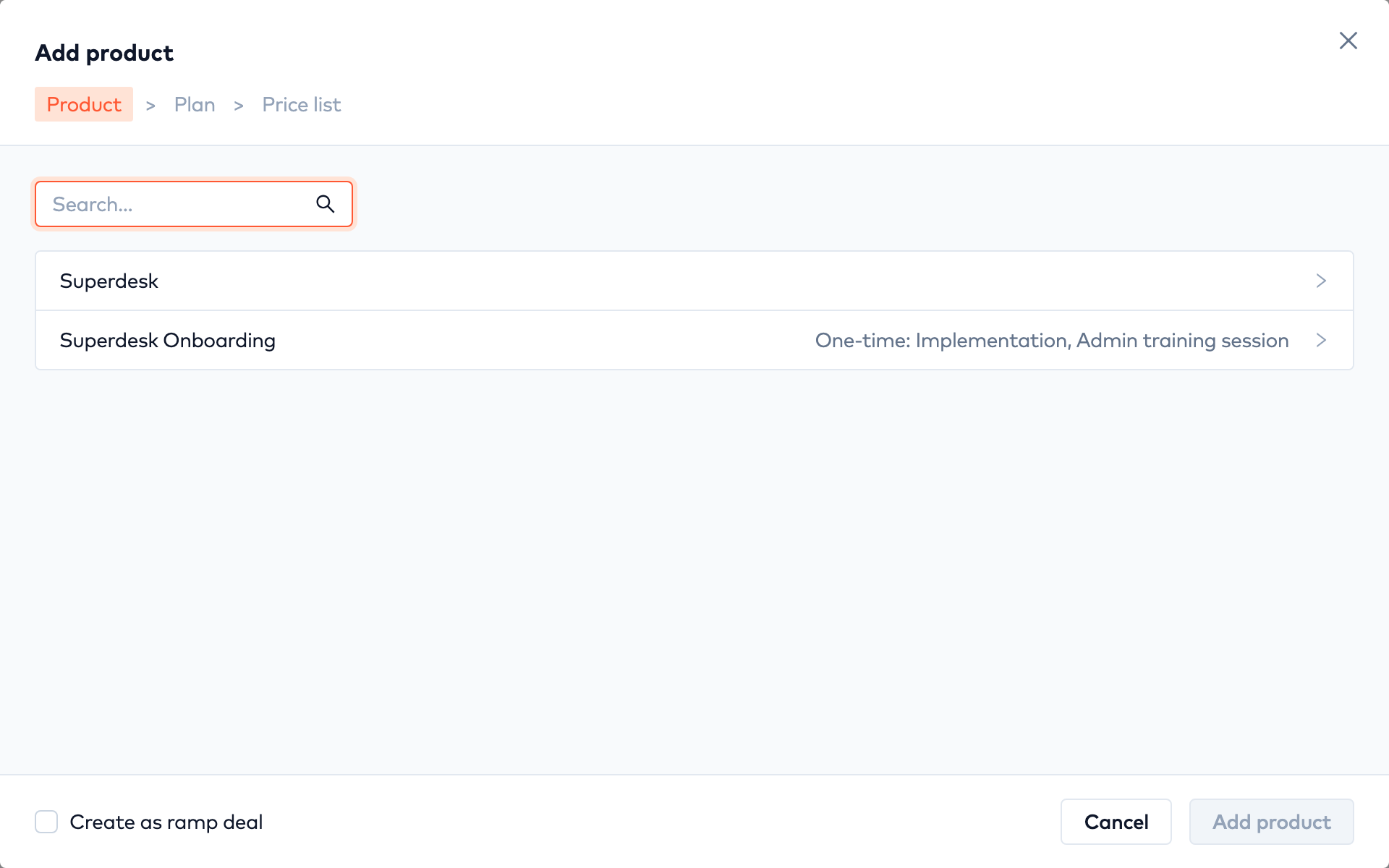
Picking a product
The dialog takes you through the steps shown at the top: Product, Plan, Price list and, if the price list has add-ons, Add-ons. Click a step you’ve completed to go back and change it.
- Pick a product. Type in Search… to find it by name.
- Pick a plan. Each plan shows its lowest price, such as “From $15/month per agent”.
- Pick a price list.
- If the price list has add-ons, turn on the ones the customer wants. See Add-ons.
- Click Add product.
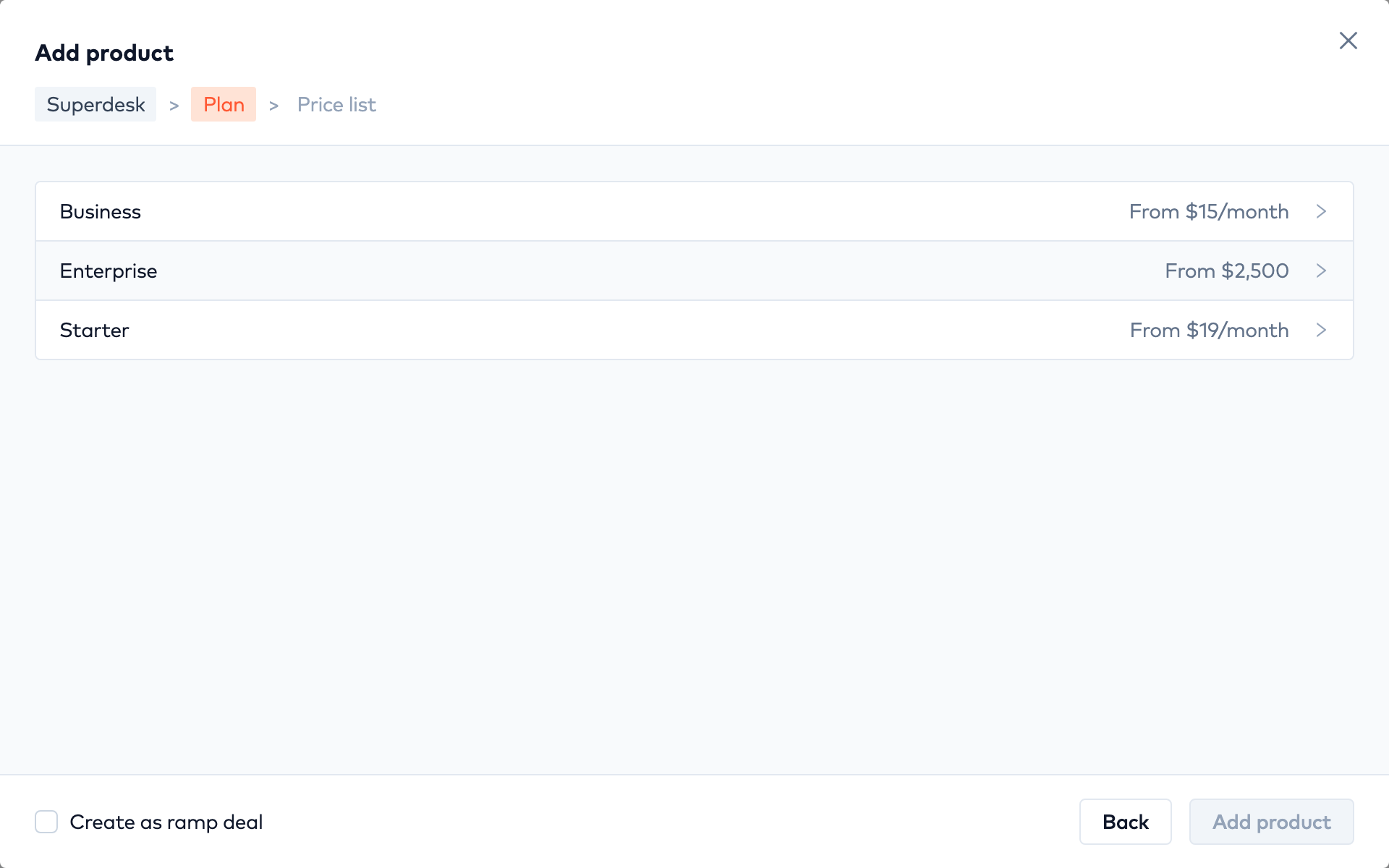
Picking a plan
What you can addLink to What you can add section
The dialog only offers what you can sell on this quote:
- Plans that are visible to sales and within their availability dates. See Plans.
- Price lists that are visible and in the account’s currency.
- One-time products that are visible to sales and have charges in the account’s currency.
Add-on plans aren’t listed as products. You add them to a plan that’s already on the quote.
One-time productsLink to One-time products section
When you pick a one-time product, the dialog lists its charges in the account’s currency. Click Add product to add all of them to the quote. They’re billed once, on the quote’s first invoice.
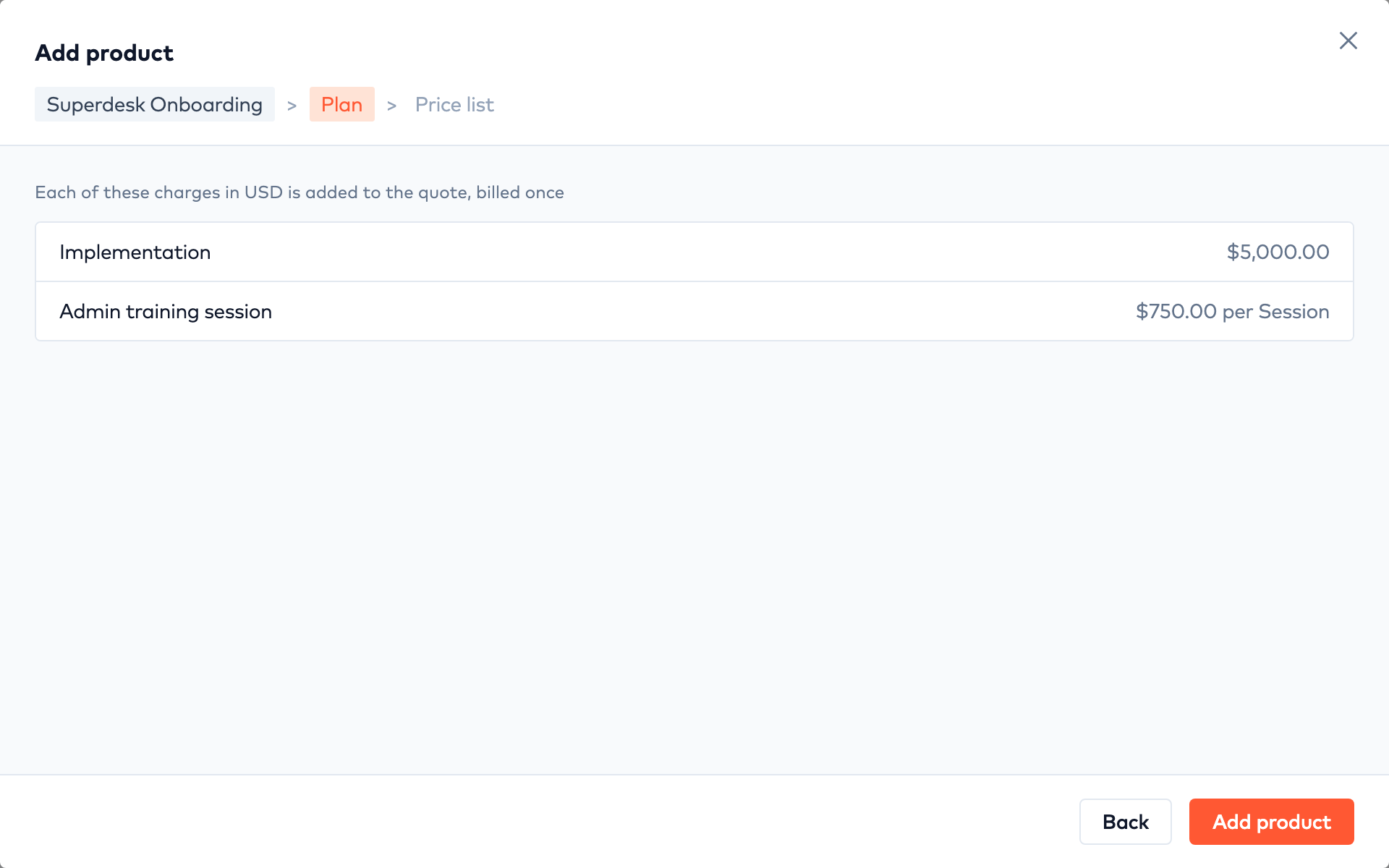
Adding a one-time product
Ramp dealsLink to Ramp deals section
A ramp deal splits a subscription into intervals, such as every 3 months, with a different quantity or price in each. Use it when a customer grows into a plan, for example 20 agents in the first quarter and 50 from the second.
To create one, select Create as ramp deal before you click Add product. Then choose when the subscription ends, the Interval, and the quantity for each interval, and click Create. Intervals run from the quote’s effective date to the end date, so extend the end date first if you need more intervals. You can’t pick add-ons in the same step as a ramp deal.
The product’s card shows a Ramp tag, and you can change the quantity and price in each interval.
Product cardsLink to Product cards section
The card’s header shows the product, plan and price list, and tags such as Evergreen, Ramp or a trial length.
Click ⋮ on the card for its actions:
| Action | Description |
|---|---|
| Subscription settings | The subscription’s tenant, trial, renewal and price adjustment. See Subscription settings. |
| Adjust by percentage | Raise or lower the prices of all charges on the quote by a percentage, from a start date. See Adjusting all prices. |
| Change price list | Switch to another price list. Only on renewals and on quotes that change an existing subscription. |
| Add coupon | Add a coupon. Only on new subscriptions. |
| Delete | Remove the product from the quote. |
Subscription settingsLink to Subscription settings section
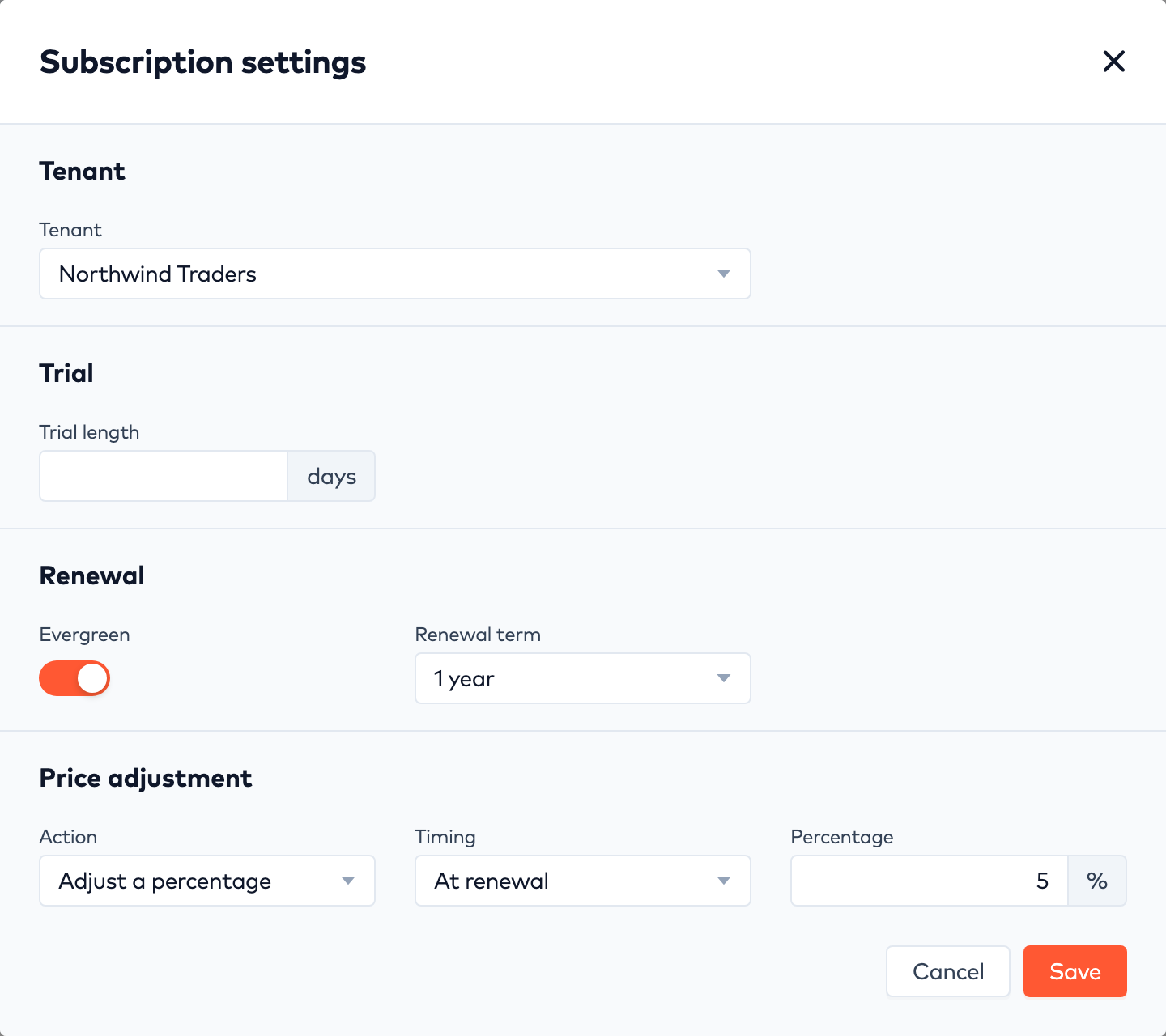
Subscription settings
| Setting | Description |
|---|---|
| Tenant | The tenant the subscription belongs to. |
| Trial length | For new subscriptions, the length of the trial in days, and whether the subscription expires or activates when the trial ends. |
| Evergreen | Evergreen subscriptions renew automatically at the end of each term until they’re canceled. Renewal term sets how long each renewal lasts. |
| Price adjustment | How prices change at renewal: No change, Adjust a percentage, or Copy prices from catalog. Timing is either At renewal or a month of the year. See Price adjustments. |
When you add a product, the price adjustment starts from the price list’s defaults.
Changing chargesLink to Changing charges section
Each charge row shows the charge, its period, quantity, price and amount. Click a quantity or price to change it.
- Quantity: shown for charges that are priced per unit. Usage-based charges show (usage), because their quantity is only known once usage is billed.
- Price: the price per unit for the period shown next to it, such as /yr or /mo. For tiered, volume and band pricing, and for money percentage charges, click the price to edit each tier.
- Amount: the charge’s total for the period on the quote.
When a charge only covers part of a billing period, a (prorated) column shows by how much its price is reduced. This happens when you add a product to an account that already has subscriptions, and Bunny lines up the new subscription’s dates with the existing ones. For example, a $100/year charge added three months into a subscription year is prorated to 75%, so the customer pays $75 for the rest of the year. See Proration.
Add-onsLink to Add-ons section
There are two kinds of add-ons:
- Plan add-ons are plans that can only be bought with another plan. If a price list has add-ons, the Add product dialog shows them in its last step, where you turn on the ones to add. To add one later, click + Add-on under the product’s card. Each add-on gets its own card, under the plan it belongs to.
- Feature add-ons are optional charges on the plan’s price list. They show as rows on the product’s card, with a switch. Turn the switch on to add the charge to the quote.
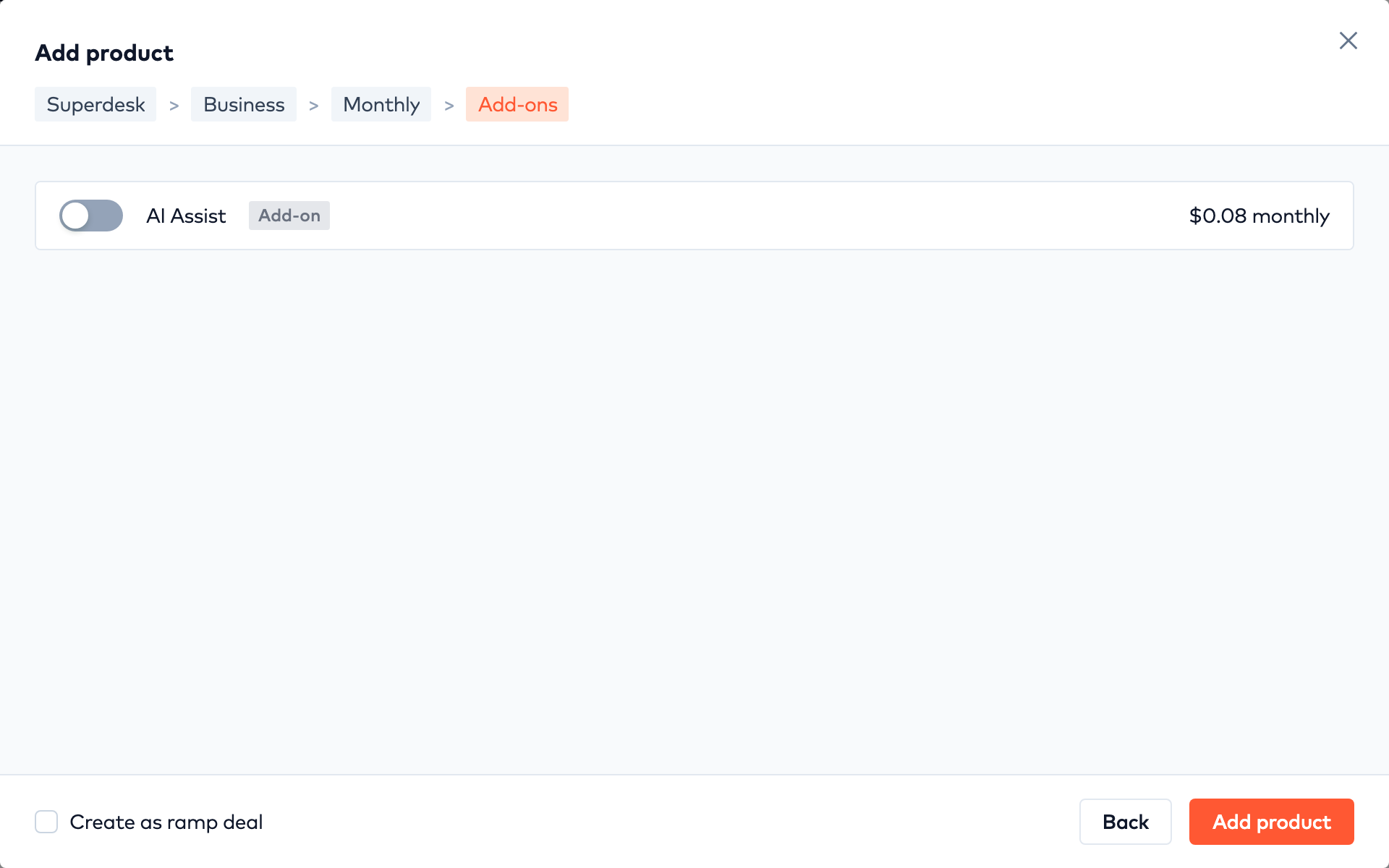
Adding add-ons with a plan
+ Add-on only shows when there’s an add-on plan for the product’s billing period that isn’t on the quote yet.
DiscountsLink to Discounts section
To give a discount on a charge, hover over its row, click ⋮ and choose Add discount. A discount row appears under the charge.
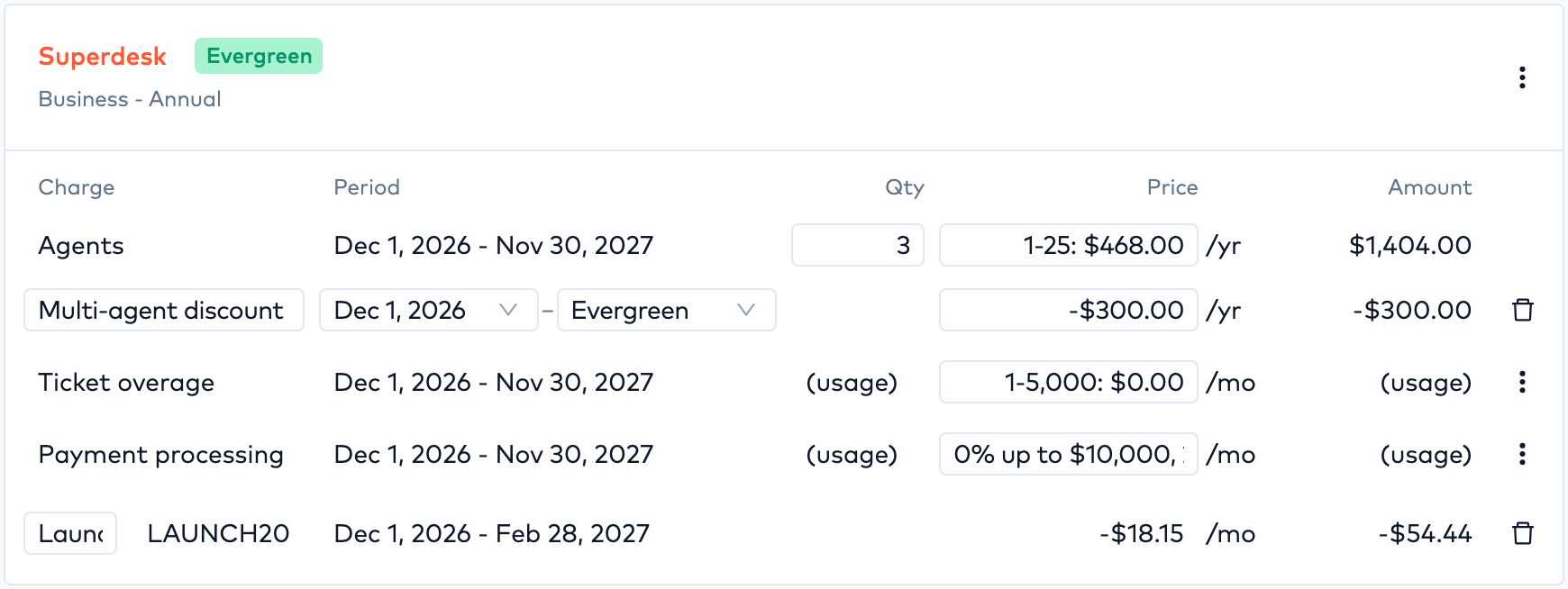
A $300 discount on Agents, and a coupon
| Field | Description |
|---|---|
| Name | What the customer sees on the quote and invoices, such as “Multi-agent discount”. |
| Start and end | When the discount applies, by billing period. Choose Evergreen for a discount that never ends. |
| Price | The discount amount for each period, such as $300 a year. |
A discount is an amount, not a percentage. To give a percentage off, work out the amount from the charge’s price. A discount can trigger an approval rule, for example one for discounts over 15%.
To remove a discount, click its trash icon.
CouponsLink to Coupons section
To add a coupon, click ⋮ on the product’s card, choose Add coupon, enter the code and click Add Coupon. The coupon shows as a row on the card with its code, the period it applies to and the amount it takes off. Coupons can only be added to new subscriptions.
To remove a coupon, click its trash icon.
Adjusting all pricesLink to Adjusting all prices section
Adjust by percentage, in a product card’s ⋮ menu, changes the prices of all charges on the quote by a percentage, from a start date. The cards then show All prices adjusted by, with the percentage and amount. Click the trash icon next to it to undo the adjustment.