Bank transactions
Sync bank deposits to Bunny with Plaid, review automatically matched payments, and approve, reject or ignore matches to mark invoices paid.
As a B2B business, it’s not uncommon that customers pay invoices via other payment methods than credit cards, especially for larger payments such as annual subscriptions. With the Plaid integration, you can connect Bunny to your bank accounts and have deposits automatically synchronized to Bunny. Bunny will try and automatically match those payments with outstanding invoices and let you approve each match to get manual payment entries created and the invoices marked as paid.
Payment matching and approvalLink to Payment matching and approval section
Once the initial synchronization has completed, Bunny will attempt to automatically match the payments with outstanding invoices using the following steps:
- Locate the account based on the memo or name of the bank transaction. Bunny will look for similarly named transactions that were already matched with invoices to facilitate this.
- If succesfull, find the oldest unpaid invoice what matches the payment amount.
- If unsuccessful, Bunny will look for invoices where the total is the exact amount received. If only one invoice exists for that amount, it will suggest pairing the payment with that invoice.
- If multiple invoices exist with the exact amount, Bunny will attempt to match the accounts with the memo field using fuzzy name matching, and pick the highest scoring account over a certain threshold score.
- If still unsuccesful, Bunny will use AI as a final attempt at matching the account names to the payment memo.
Bunny will not attempt to automatically match a payment with multiple invoices.
If a payment is successfully matched to an invoice, the payment state will be set to Suggested. If unable to match, the state will be set to Unmatched.
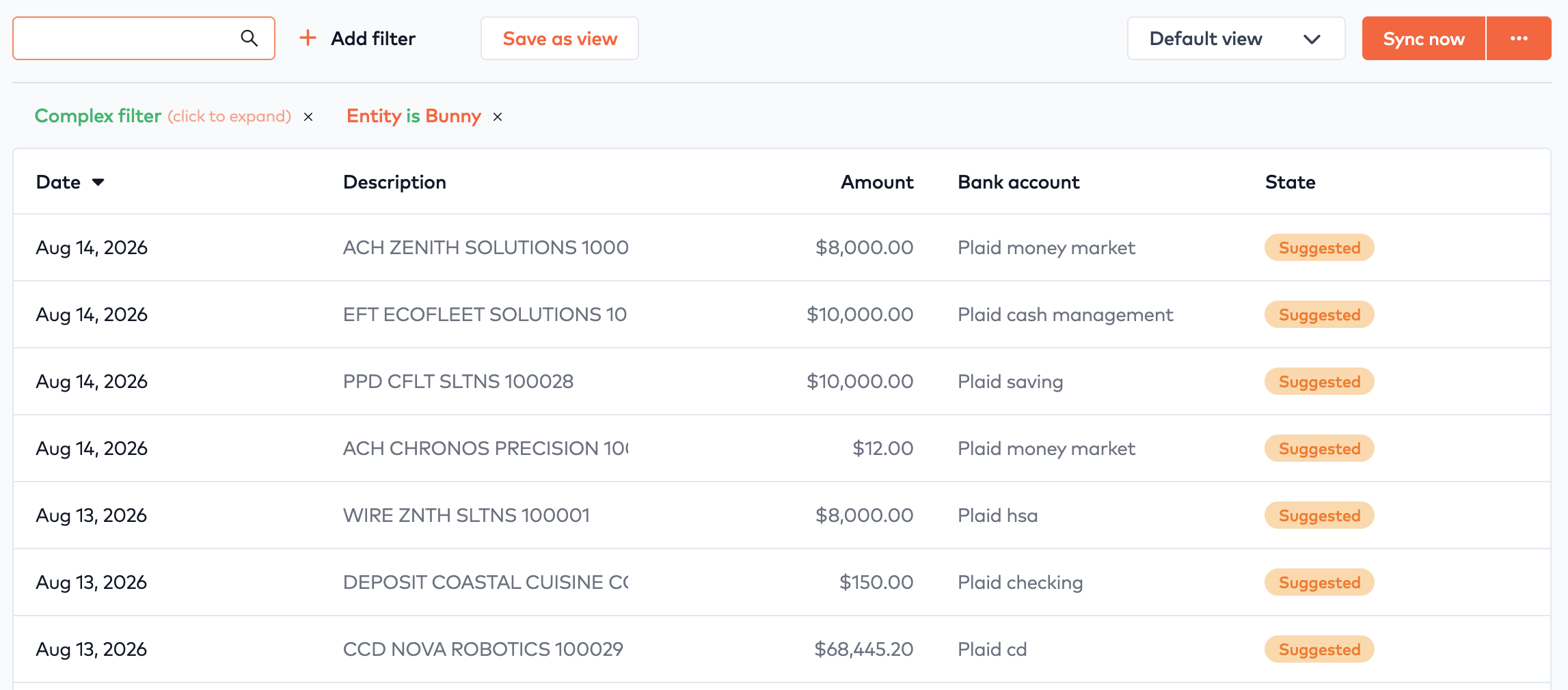
For each of the payments, do the following:
-
Click a payment that is in the Suggested state. This will bring up the payment drawer:
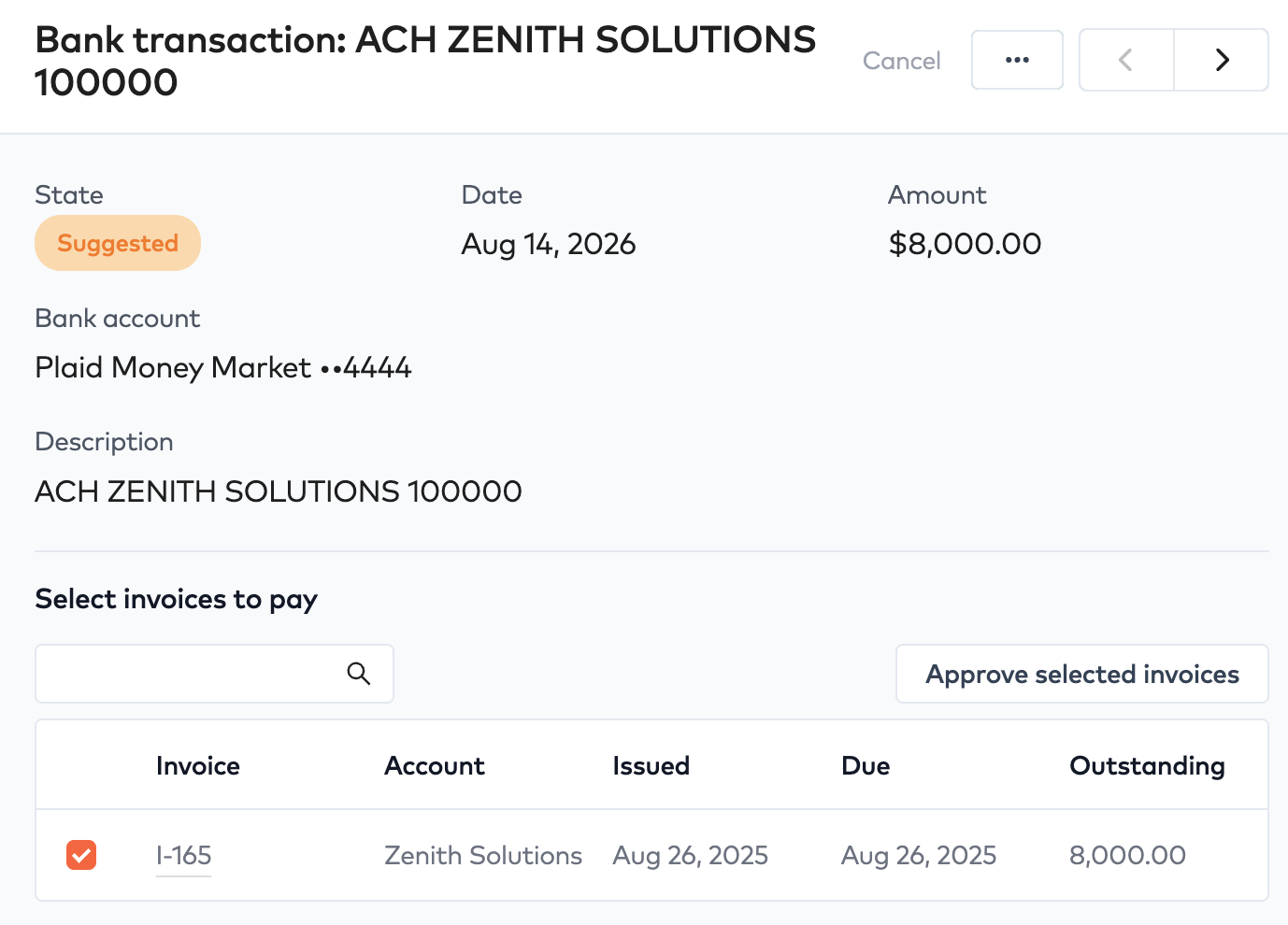
- If the suggested invoice is the correct one, click Approve selected invoices. This will generate the manual payment and use it to pay the invoice in Bunny.
-
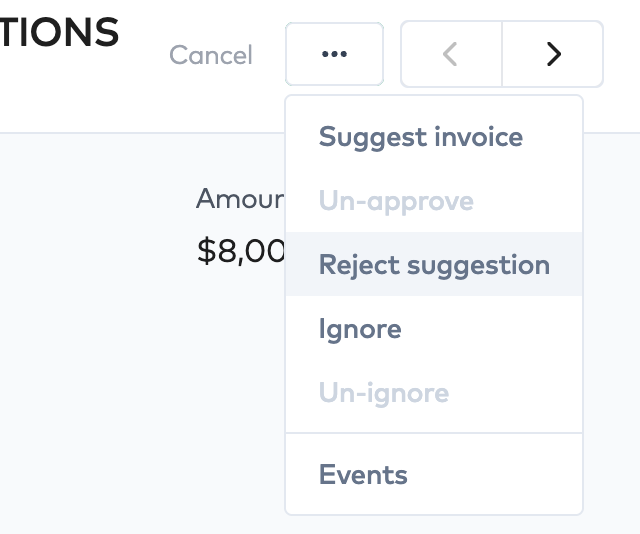
If the suggested invoice is incorrect, click the action menu in the top right corner and select Reject suggestion. This will unlink the payment from the suggested invoice.
-
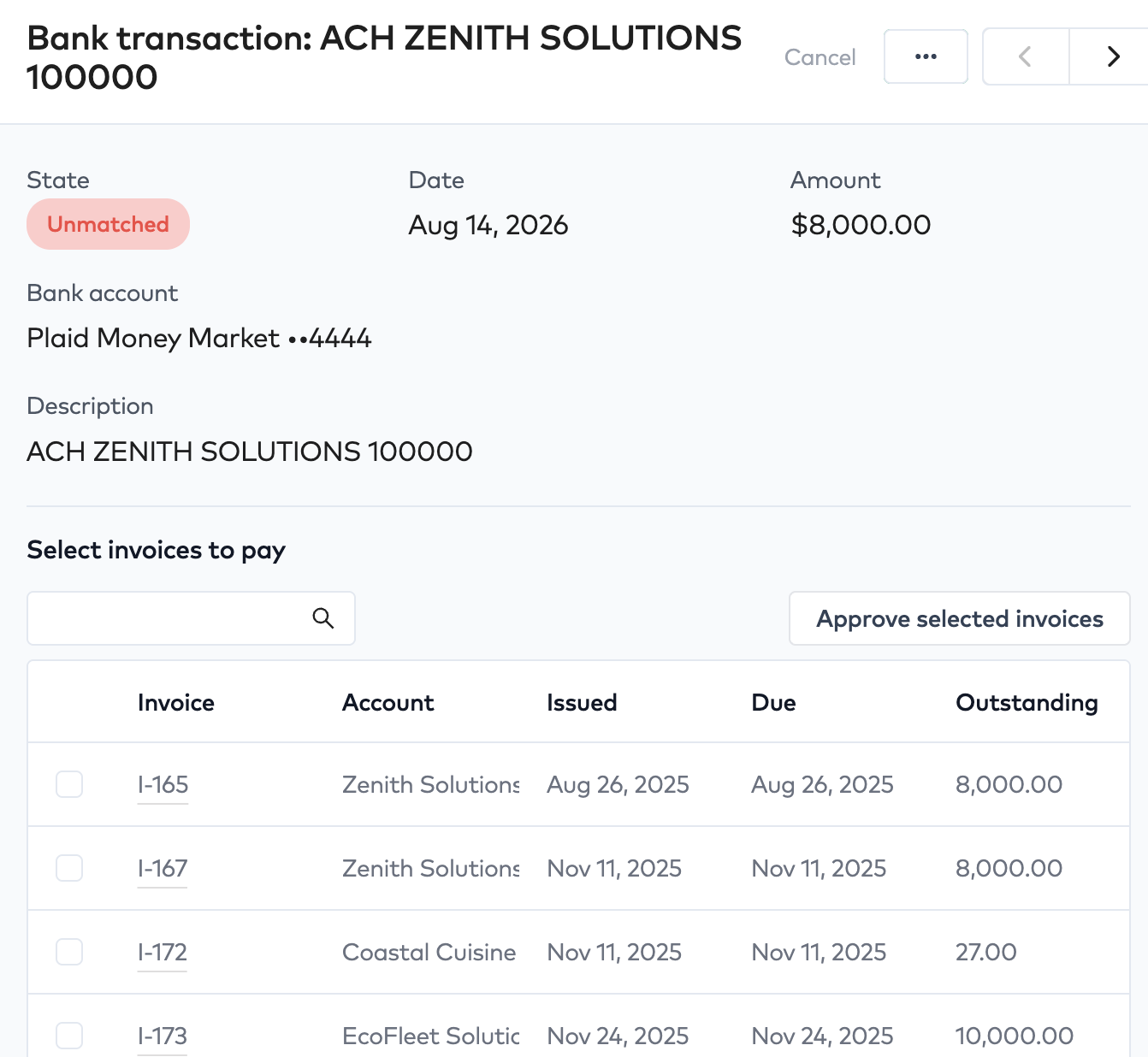
When a payment in Unmatched, the drawer will show all unpaid invoices from all accounts. Use the search function to search for the correct invoice.
-
Search for the correct invoice either by account name or invoice number, click the checkbox next to the invoice and click Approved selected invoice.
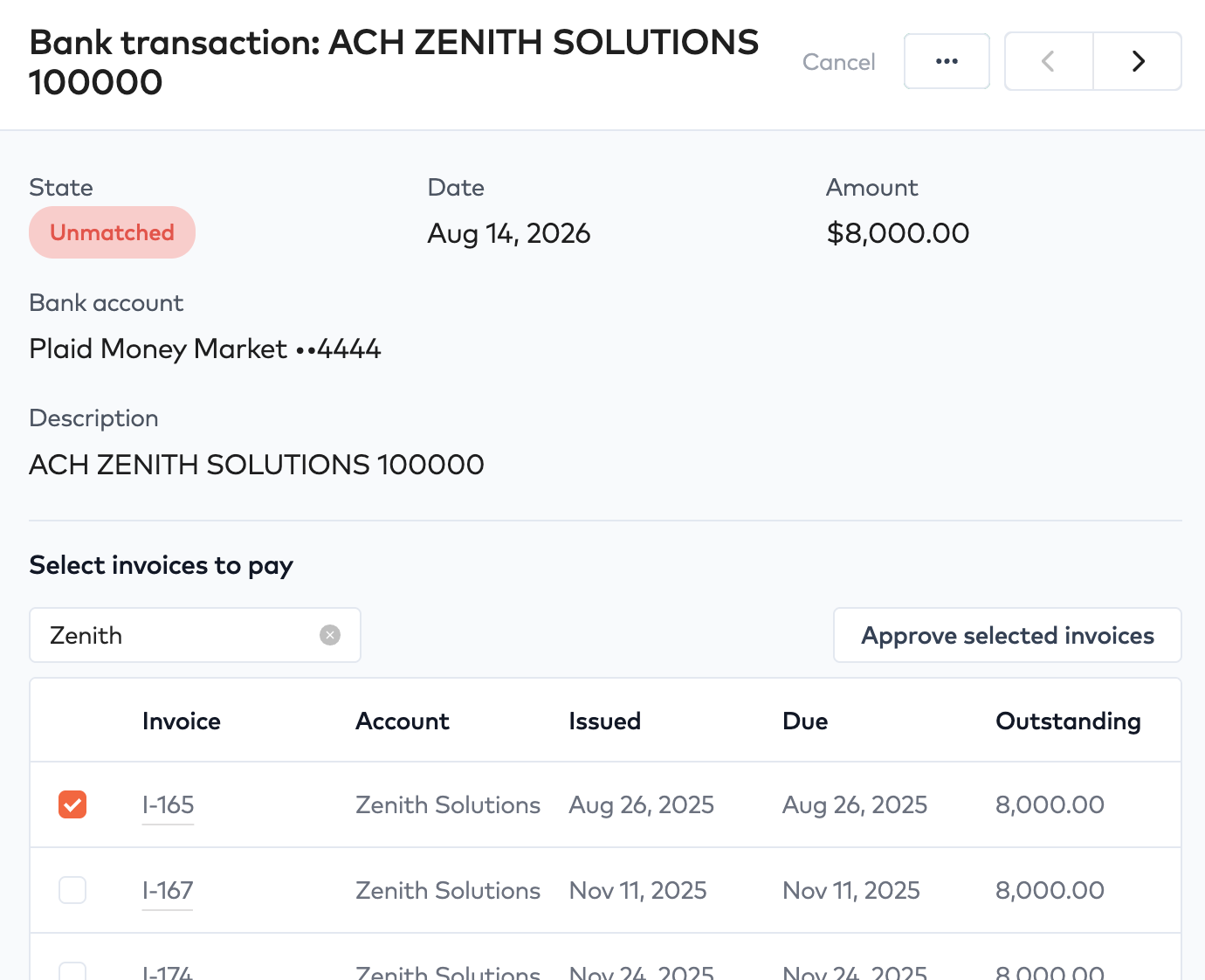
- If the payment is for multiple invoices, select the invoices and click Approve selected invoices.
- If a deposit is not relevant in Bunny, click Ignore in the action menu. This will hide the payment from the default view. Note that you can remove the default filter to see both Ignored and Approved payments.
- If a payment was approved in error, use Unapprove from the action menu to disassociate the payment from the invoice. The invoice will return to either not due or due, depending on it’s original due date.
Synchronization scheduleLink to Synchronization schedule section
The synchronization will run daily at 2AM in the timezone configured on the entity.