QuickBooks
Integrate Bunny with QuickBooks for seamless SaaS revenue accounting.
To install the QuickBooks integration, go to Settings > Integrations > Available integrations and select the QuickBooks integration.

Proceed with configuring the integration:
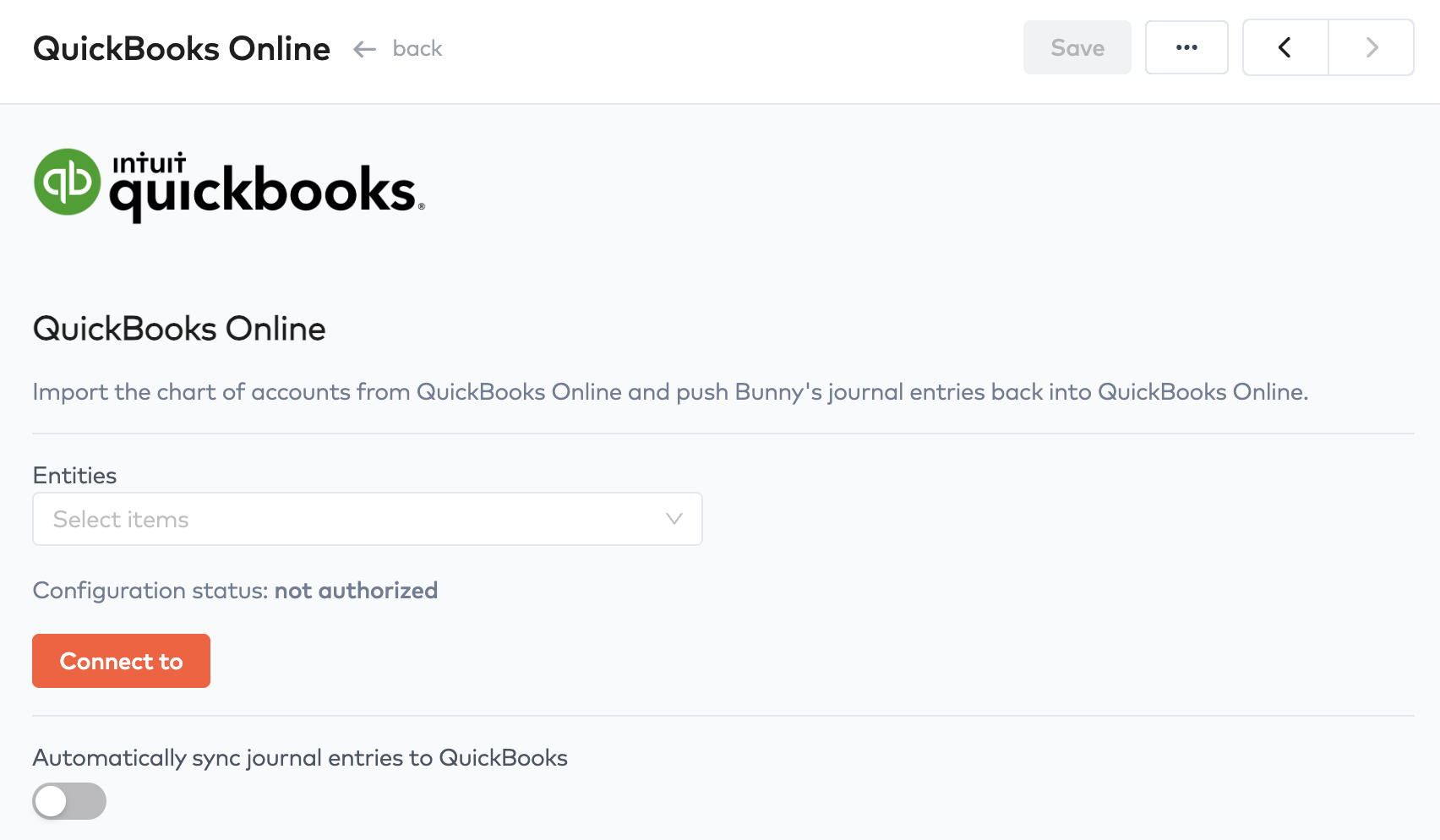
Select the entity or entities the integration is for. This is important as it controls which business entities will get the chart of accounts loaded, as well as which entities will push journal entries into QuickBooks.
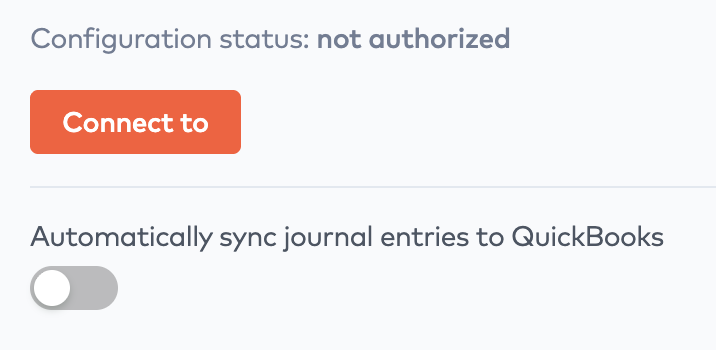
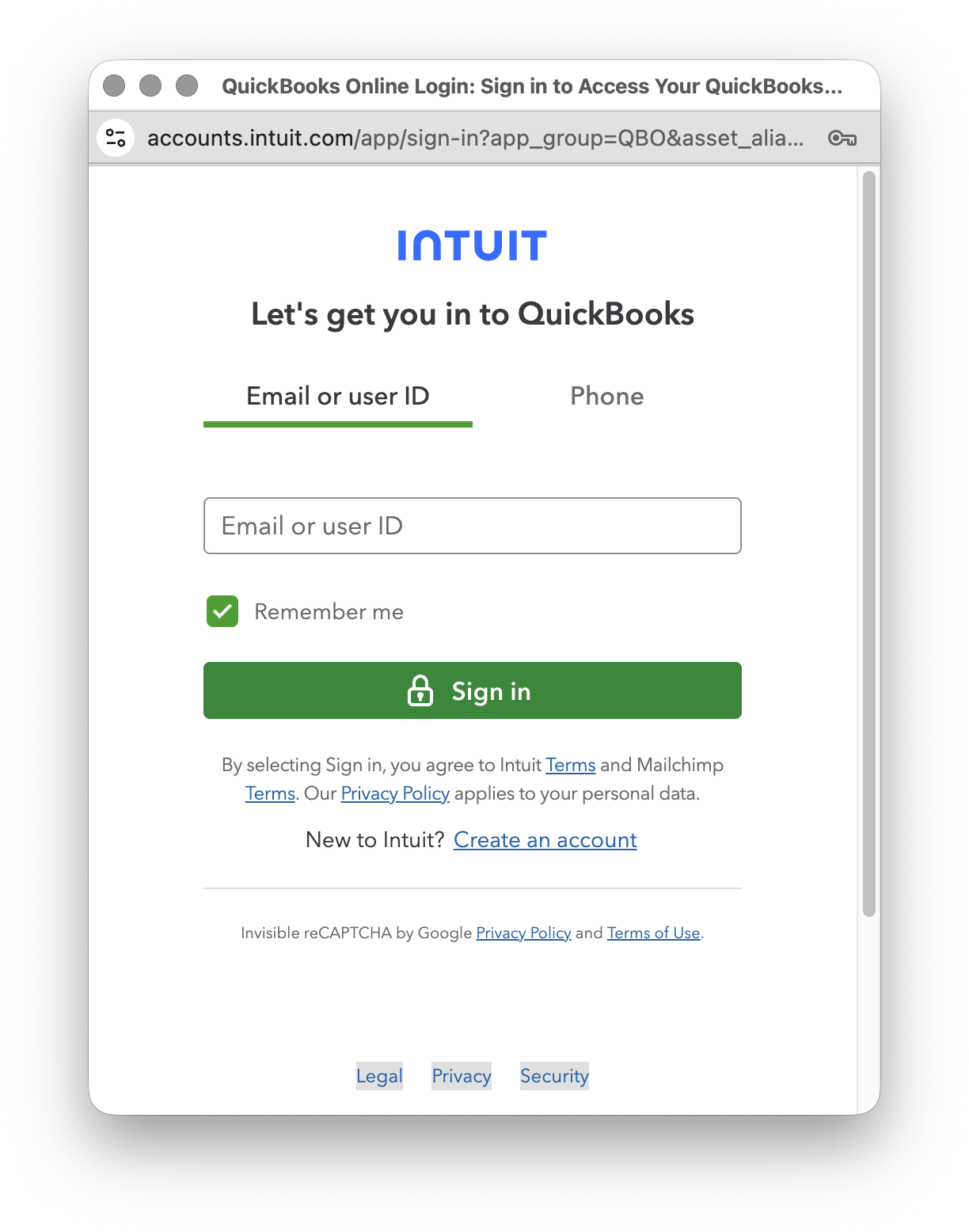
Click Connect to to connect Bunny to QuickBooks. A QuickBooks popup will be shown that will prompt you for authorization.
Once this step is completed, you will see that Bunny is successfully connected to your QuickBooks account:


The top of the page will now have two new options:
- Update accounts. This will copy the financial accounts / chart of accounts from QuickBooks and into Bunny.
- Sync journal entries. Will synchronize all new journal entries from Bunny into QuickBooks. Note that in order to do that in a meaningfull way, you will need to check the mapping of financial accounts in Bunny via the GL Mappings menu item.
GL MappingsLink to GL Mappings section
Note: It is highly encouraged to test the following setup in your sandbox Bunny account as well as with a non-production Quickbooks account.
General Ledger mappings is where you add additonal information to the imported chart of accounts from QuickBooks, so Bunny know what journal entry items to post to the accounts.
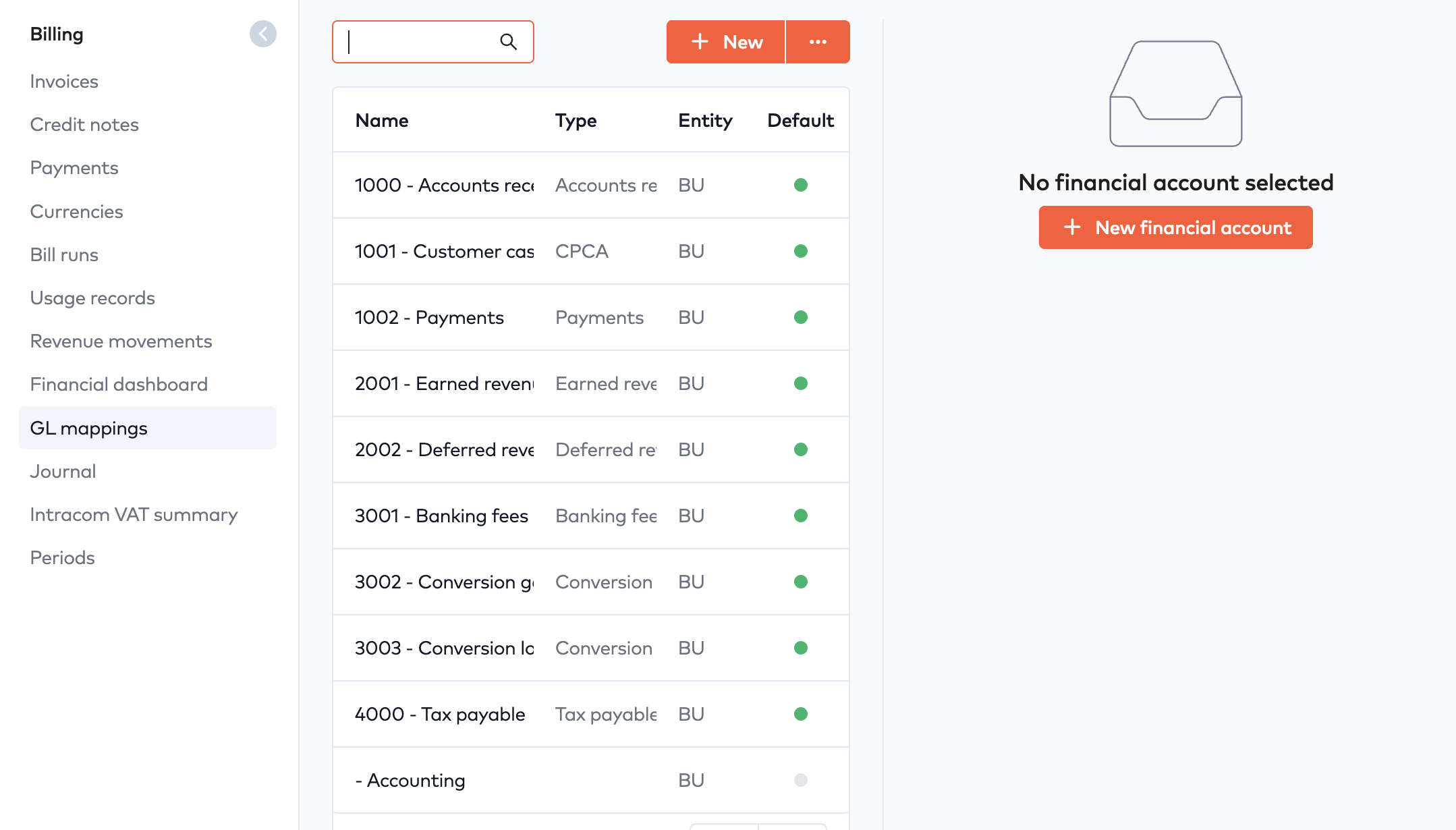
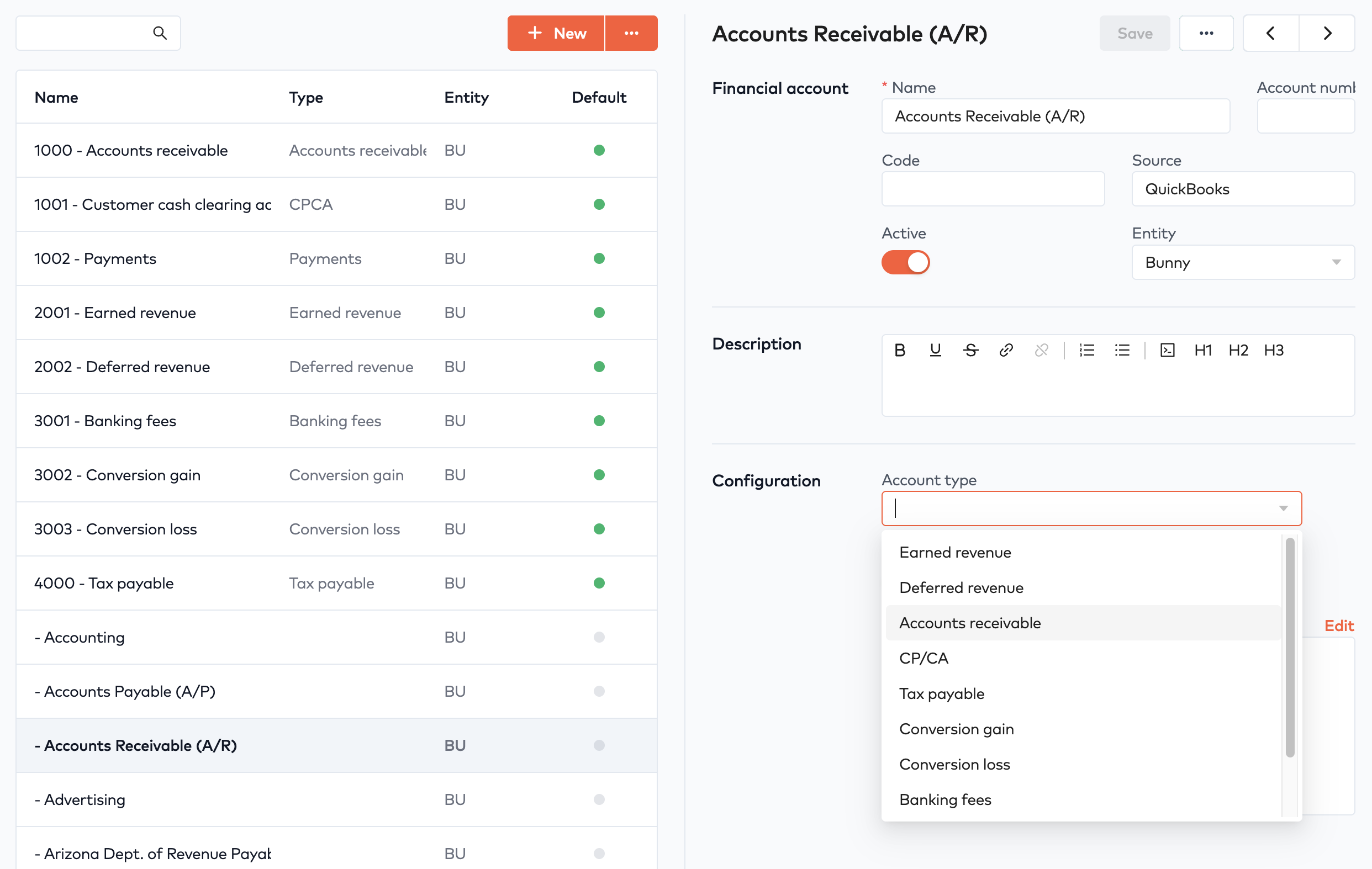
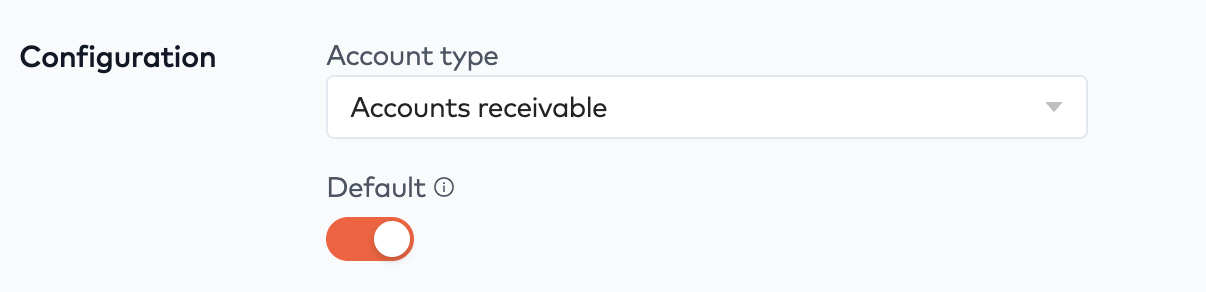
By default, your Bunny account comes with a set of default financial accounts numbered between 1000 and 4000. If you clicked Update accounts on the QuickBooks plugin configuration page, the financial accounts from QuickBooks is added to this list. Make sure to map all account types to QuickBooks financial accounts and mark them as default:
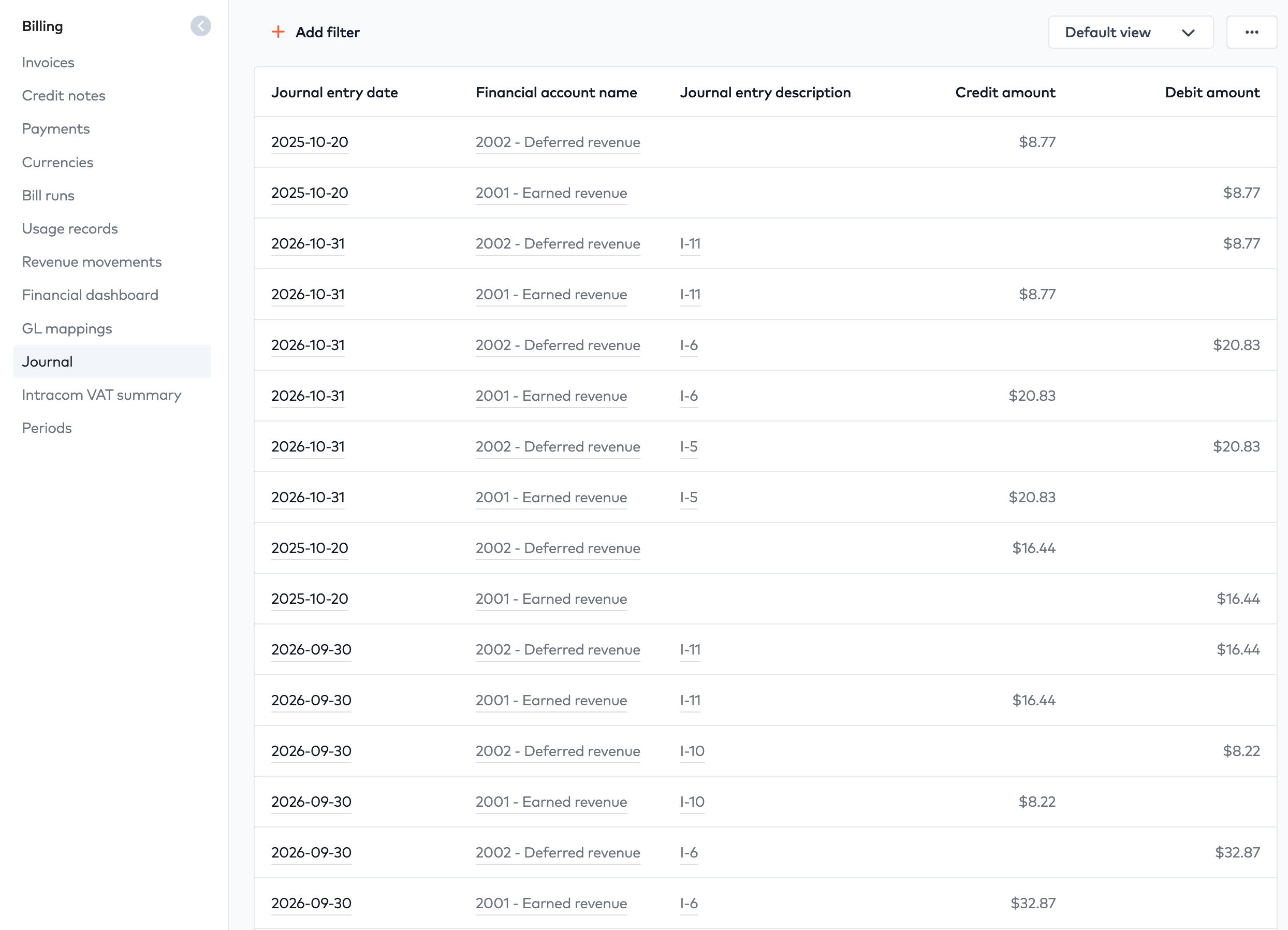
Once that is configured, you should begin to see journal entry items automatically get created when invoices are generated, paid, credited etc.
Finalize integrationLink to Finalize integration section
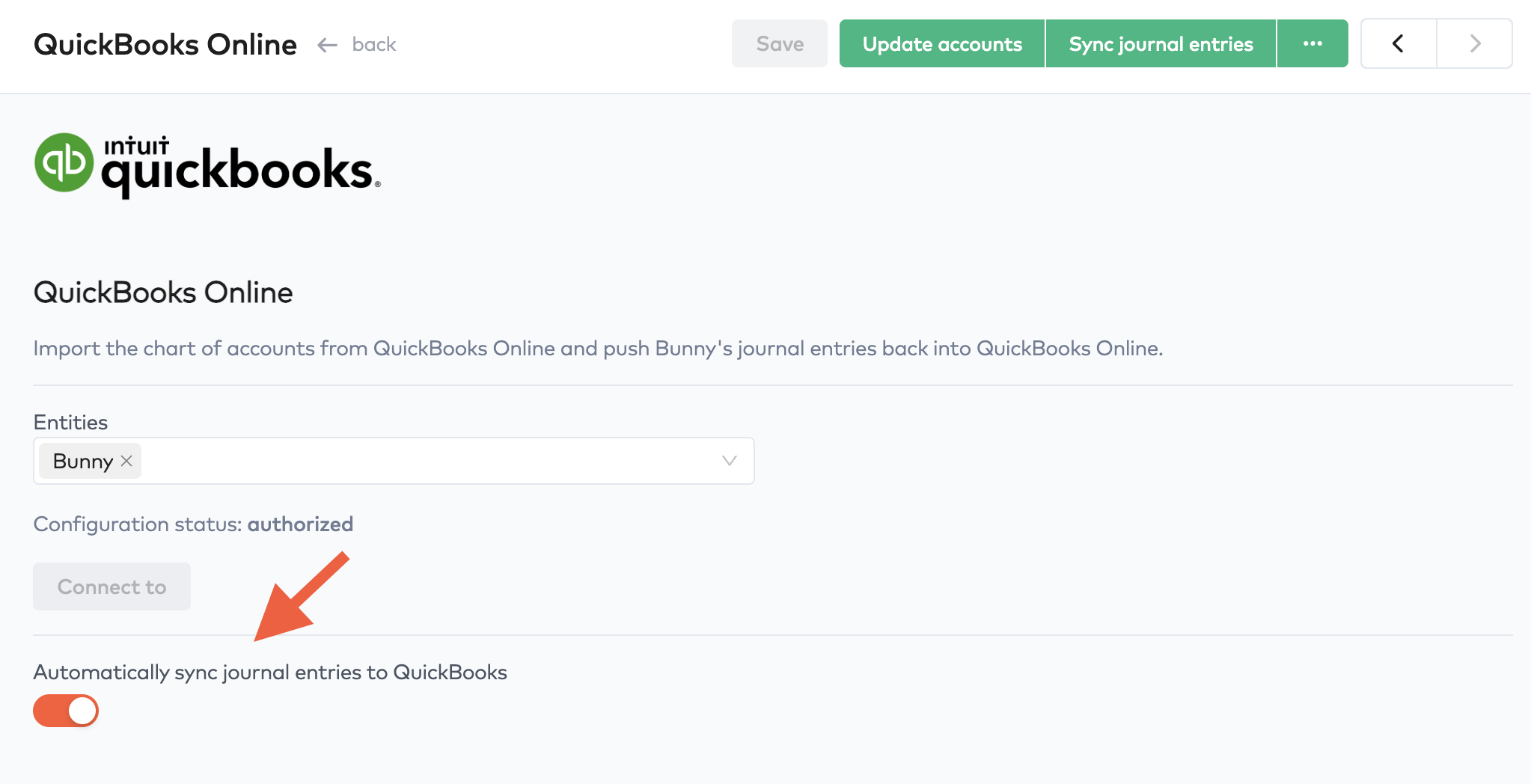
Once all the above is configured and working, you are ready to enable automatic sync of journal entries to QuickBooks: