Resend
Connect your Resend account to ensure that all customer facing quotes and invoices are sent from Bunny using your own domain.
InstallLink to Install section
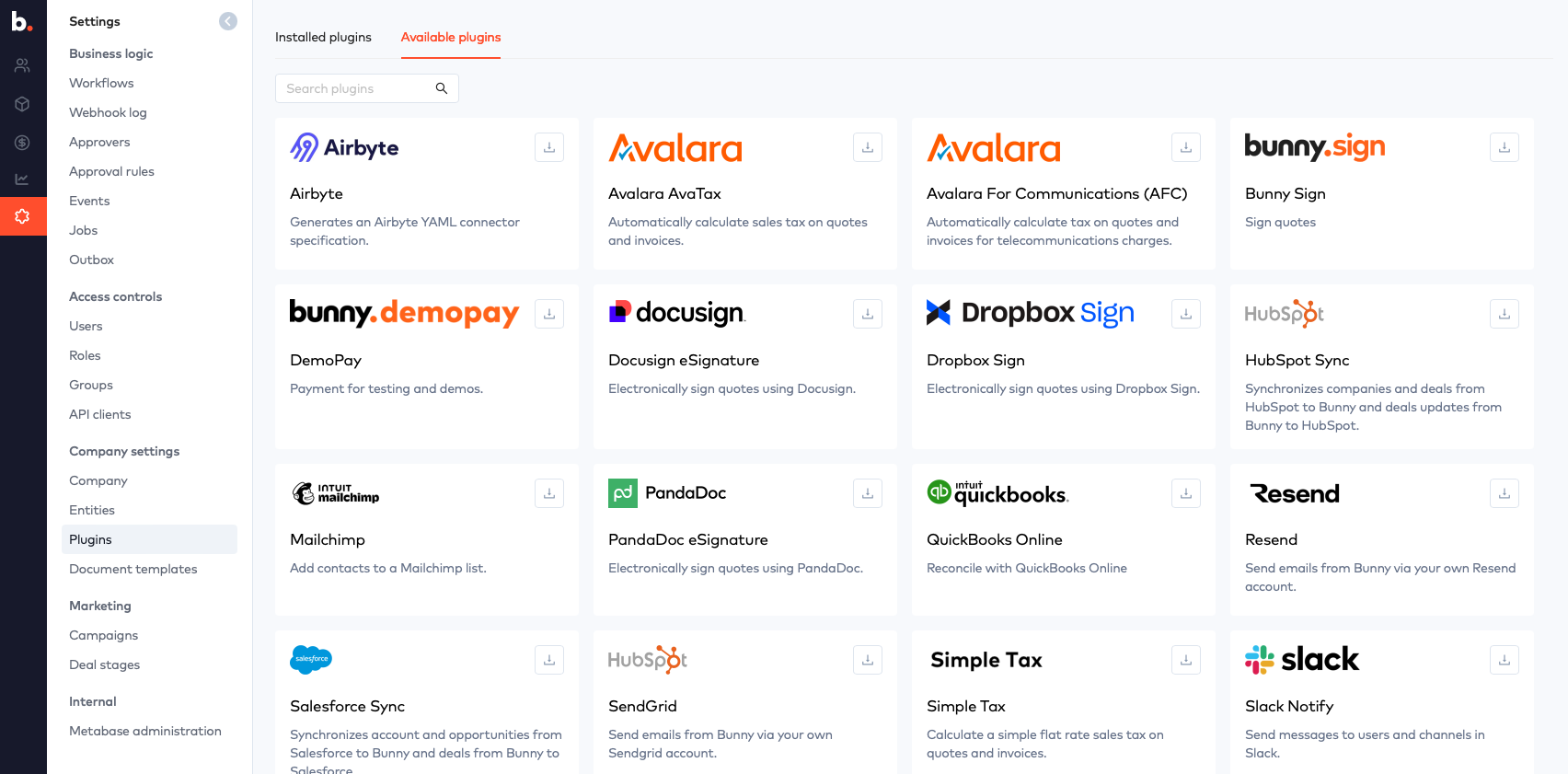
Go to Settings > Integrations and select Resend to install the integration.
ConfigureLink to Configure section
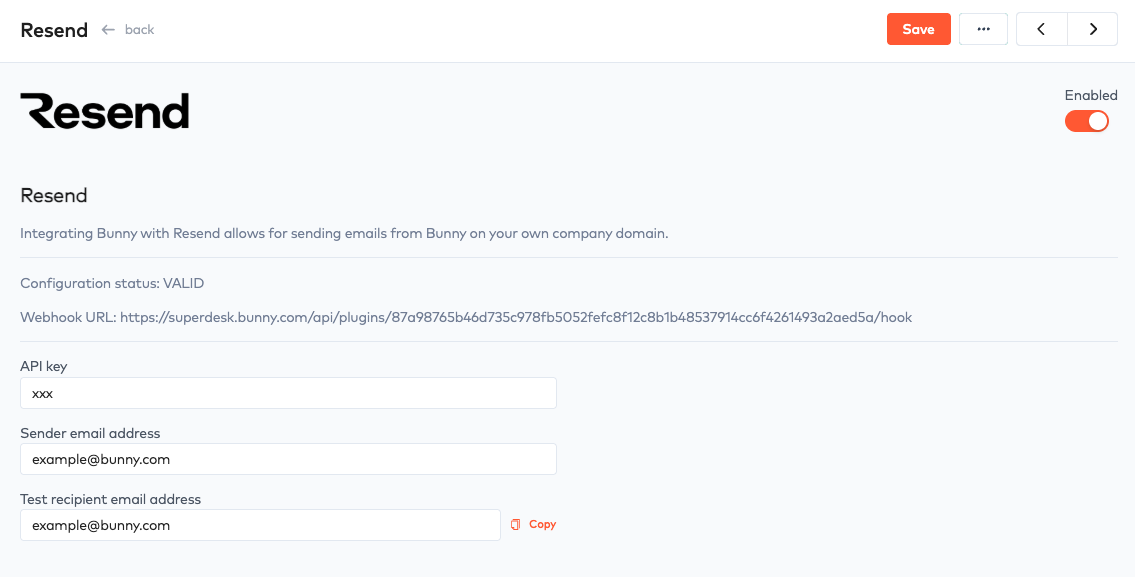
Enter your Api Key from Resend along with the Sender from address that you want to use for your emails.
Also enter your email address or an address that you can check for the delivery of a test email into the Test recipient email address field.
When you click Save a test email will be sent to validate the Api Key and sender email address are correct.
Note that the domain of the from address needs to match a domain that you have verified in Resend or you will get an error.
Set up delivery trackingLink to Set up delivery tracking section
Emails will appear in a Processing state in the Bunny outbox unless you setup a webhook in Resend to allow Bunny to track the delivery state.
Copy the Webhook URL on the Resend integration in Bunny and use this to configure a webhook in Resend.
For example, copy the webhook url from Bunny
https://superdesk.bunny.com/api/plugins/87d52347b6f4261493a2aed5a/hook
Then go to the Webhooks section in your Resend account and click the button to Add webhook.
Paste in the webhook url and select the following event types:
- email.delivered
- email.failed