Stripe
Bunny has built-in support for credit card payments via Stripe.
IntroductionLink to Introduction section
Bunny leverages Stripe for credit card and bank payments. Once you have configured the Stripe integration, customers will be presented with all the applicable payment options for their country, based on the payment methods you have configured in Stripe.
The payment form will look something like this:
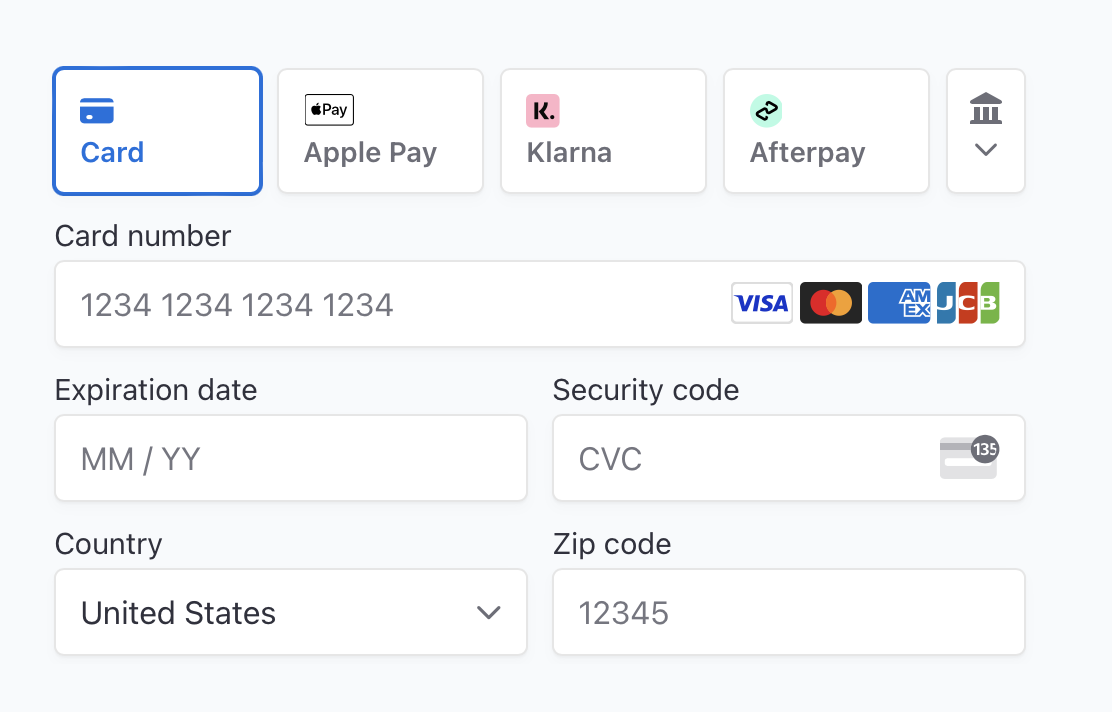
Stripe payment form
ConfigurationLink to Configuration section
Select Stripe from the integration list.
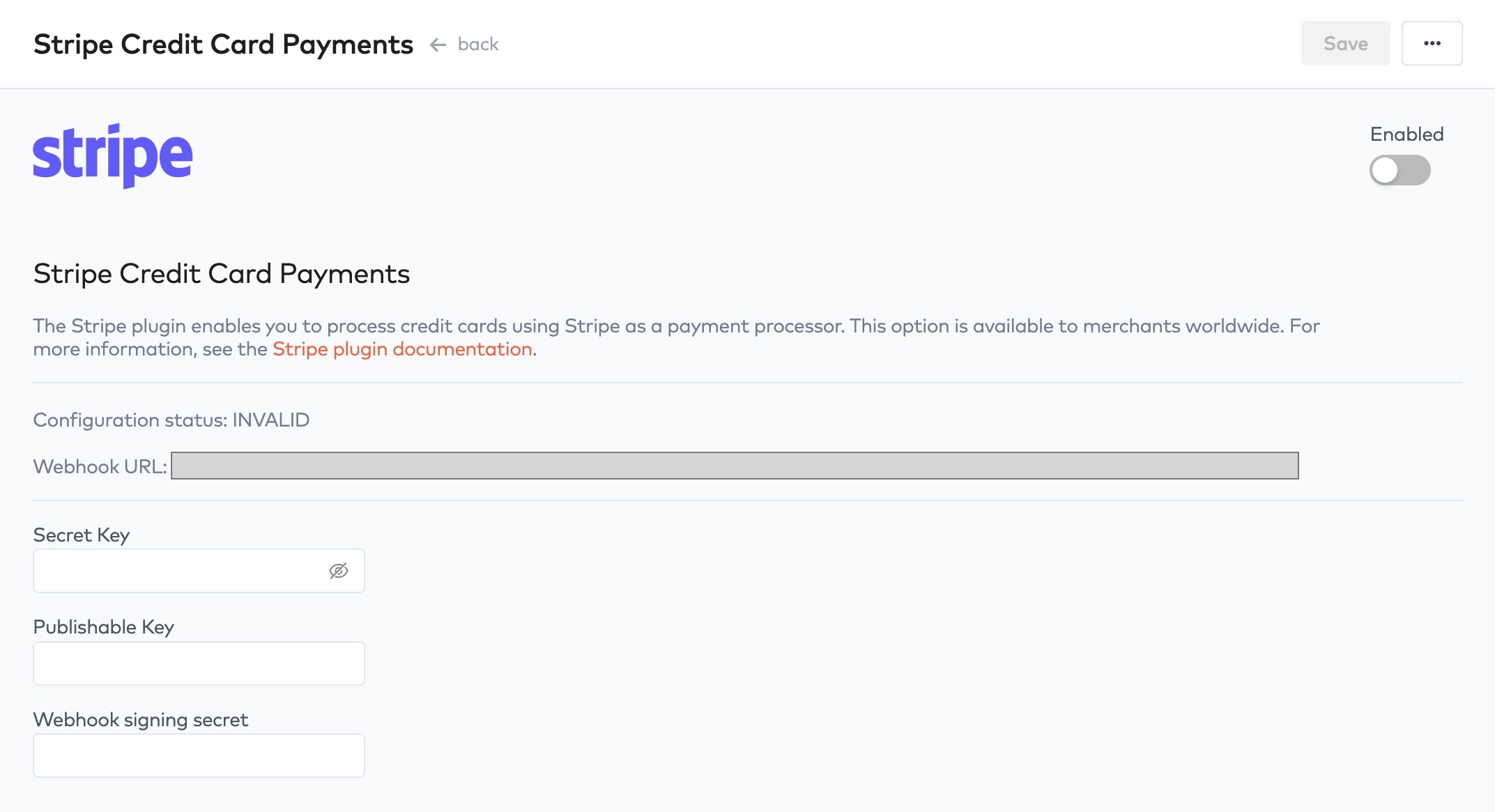
Login to the Stripe dashboard and navigate to https://dashboard.stripe.com/apikeys. Here, copy the following pieces of information:
- Secret Key
- Publishable Key
- Webhook siging secret
- Log in to your Stripe dashboard
- Click Developers in the bottom left corner.
- Click the Webhook” tab.
- Click +Add endpoint in the top right part of the screen.
- Copy/paste the Webhook URL that is found on the Stripe integration configuration screen in Bunny, and insert it in the Endpoint URL field.
- Click “+Select events” and select these events:
payment_intent.succeeded,payment_intent.payment_failedandpayment_intent.canceledsetup_intent.succeededpayment_method.detachedmandate.updated, for bank debits such as SEPA Direct Debitcharge.updatedcharge.dispute.created,charge.dispute.updatedandcharge.dispute.closed, so disputes show up in Bunny- If you imported your customers and subscriptions from Stripe, also select the
customer.*,customer.subscription.*,payment_method.attached,payment_method.updated,invoice.*,charge.succeeded,charge.refunded,credit_note.*,product.*,price.*andcoupon.*events so changes in Stripe keep syncing to Bunny.
- Click the Add endpoint button.
- Under Signing secret, click Reveal
- Copy the code and paste it into the signing secret field on the Stripe integration configuration page in Bunny.
Insert the Secret Key and the Publishable Key in the form and enable the integration. Click Save. The Configuration Status field will change to VALID if the credentials are correct.
The Stripe integration is now ready to use.
Other settingsLink to Other settings section
- Statement descriptor suffix - Text appended to the statement descriptor configured in Stripe. Customers see it on their card statement.
- Process payments - Turn this off to use Stripe only as a data source. Bunny keeps importing and syncing from Stripe, but stops offering it as a payment method and never charges through it.